
Microsoft Teams Integration
Connect Vurbalize to your Microsoft Teams workspace and receive instant alerts when high-value visitors engage, workflows trigger, and routing decisions fire — directly in the channels your team already uses.
Install the Teams Integration
Connect your Microsoft tenant to Vurbalize in a few clicks using secure Microsoft OAuth.
Open Integrations
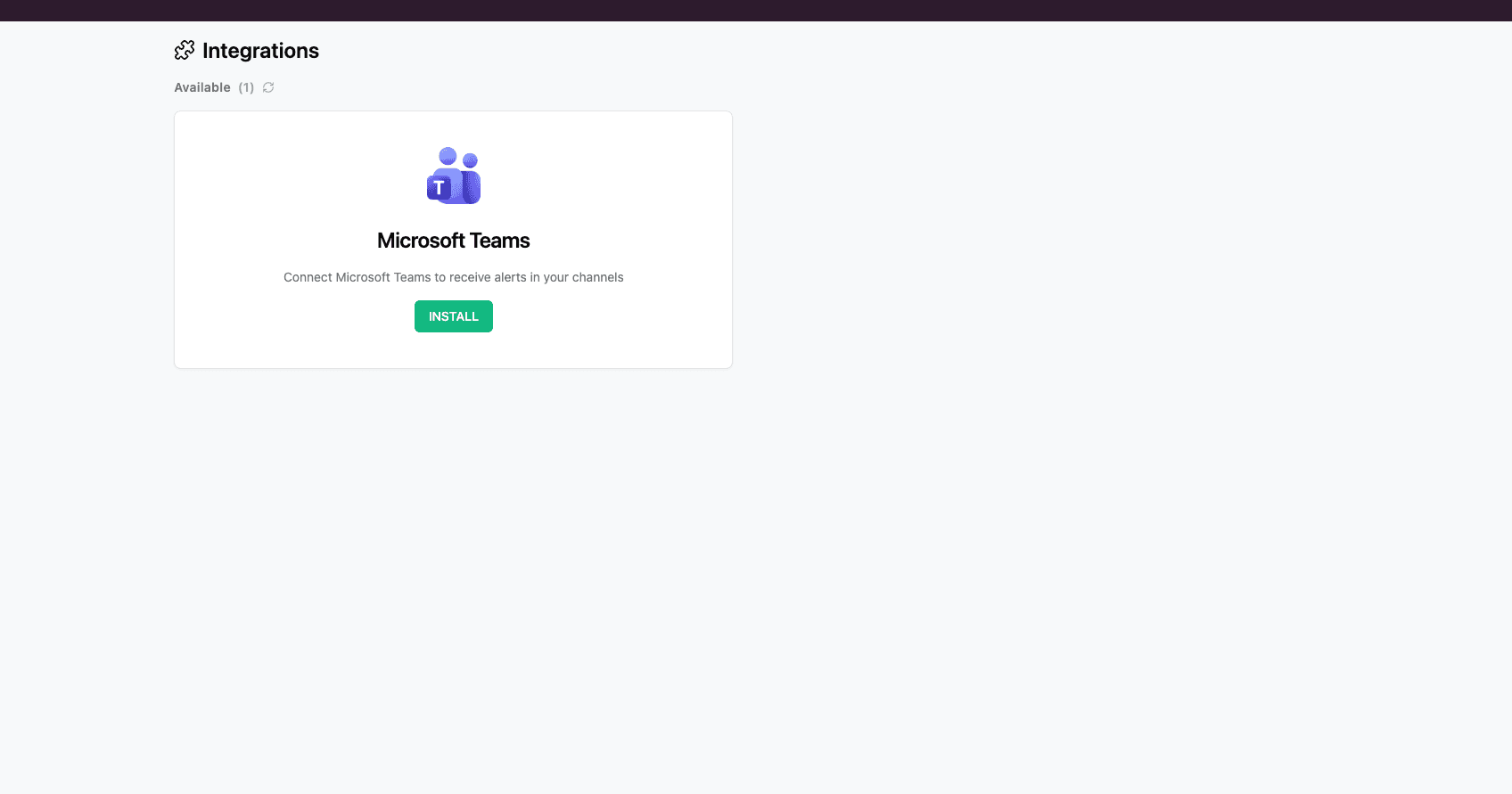
Navigate to app.vurbalize.ai → Integrations. Search for Microsoft Teams and click Connect.
Sign in with Microsoft
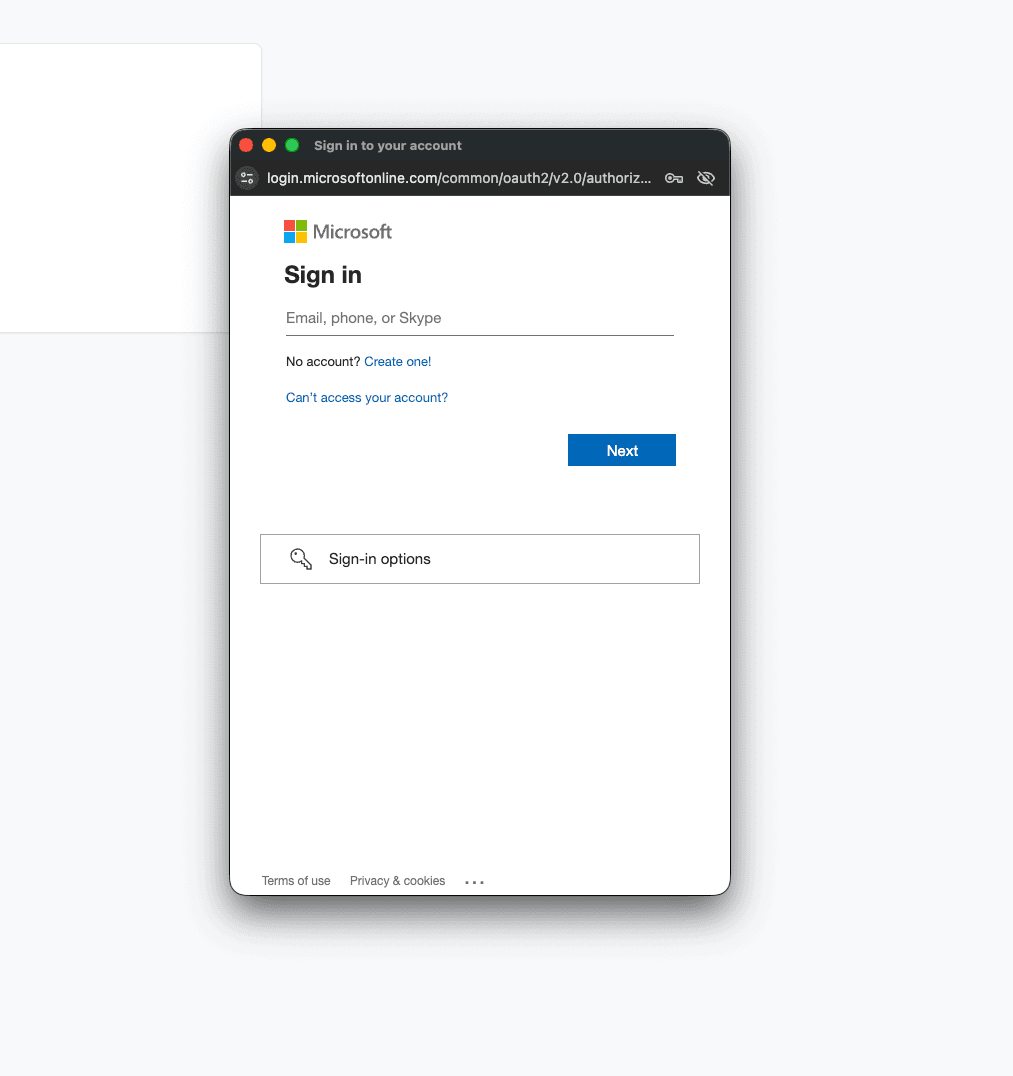
The Microsoft authorization screen opens. Sign in with your Microsoft account to authenticate and link your tenant to Vurbalize.
Install Vurbalize Alerts in Microsoft Teams
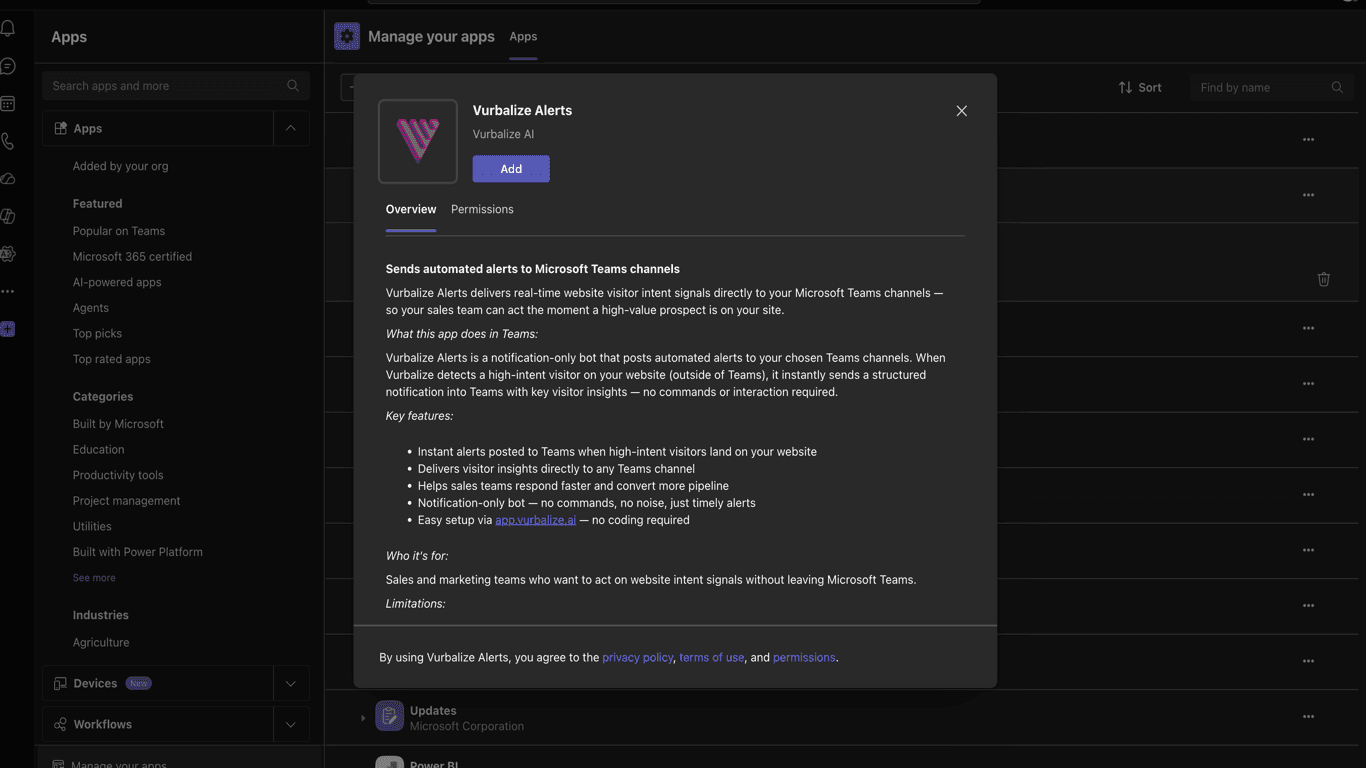
Add the Vurbalize Alerts app to your Teams workspace from the Microsoft marketplace using the same Microsoft account used to connect in the previous step.
Open Teams Apps
In Microsoft Teams, go to Apps and search for "Vurbalize Alerts". Click Add to install the app into your team.
Add to a channel
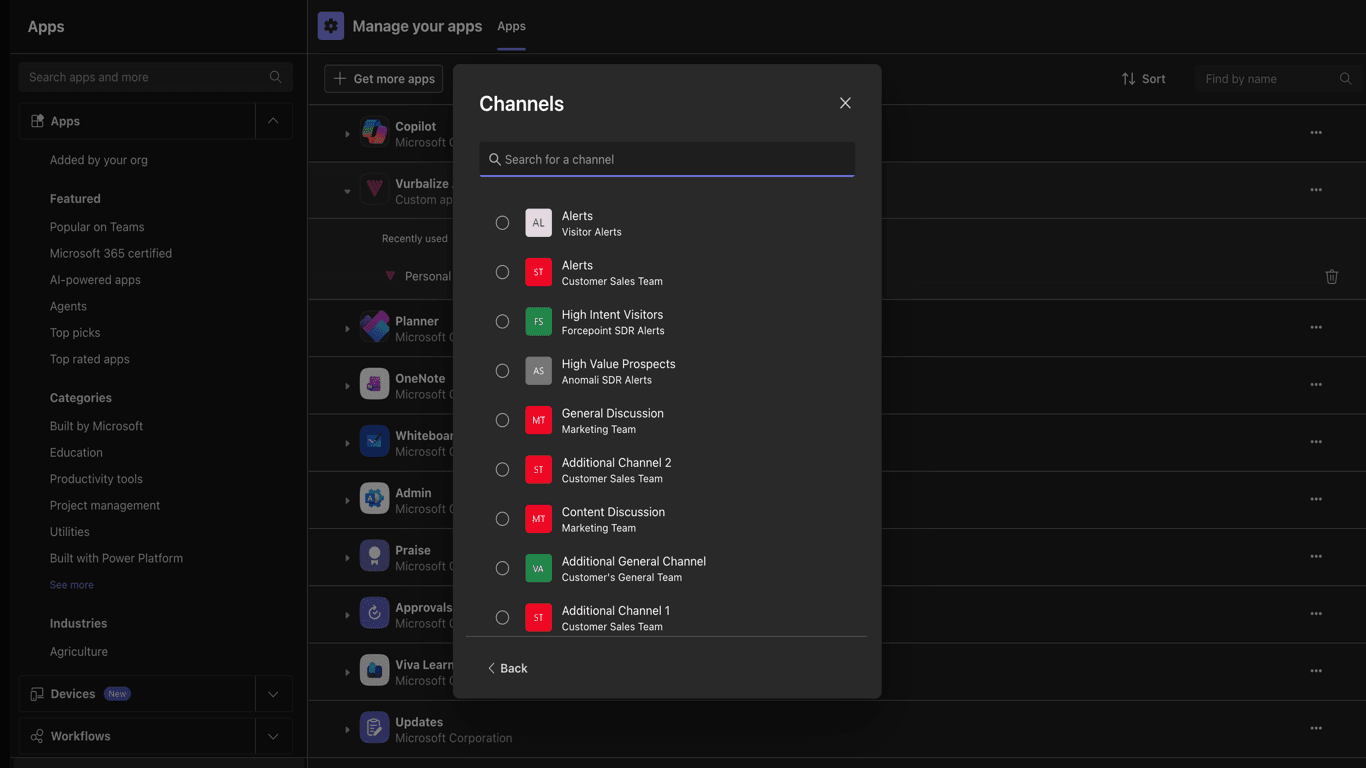
Once installed, add Vurbalize Alerts to the specific Teams channels you want to receive alerts in.
Configure Alerts in a Workflow
Route alerts to any Teams channel directly from the Vurbalize workflow builder.
Add an Alert node
Open a workflow, then add or edit an Alert node. Set Platform to Microsoft Teams. A Teams Channels dropdown will appear.
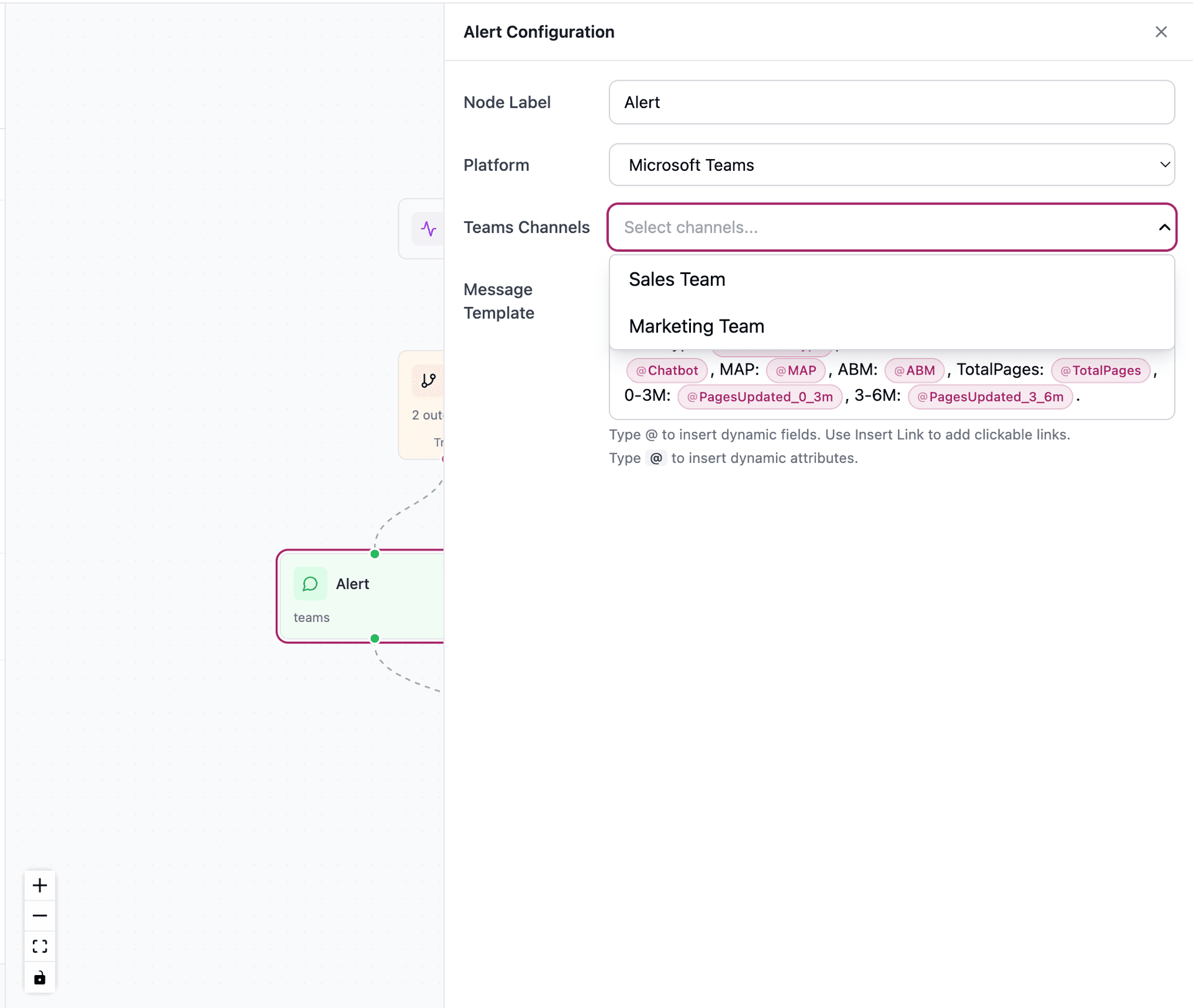
Select channels
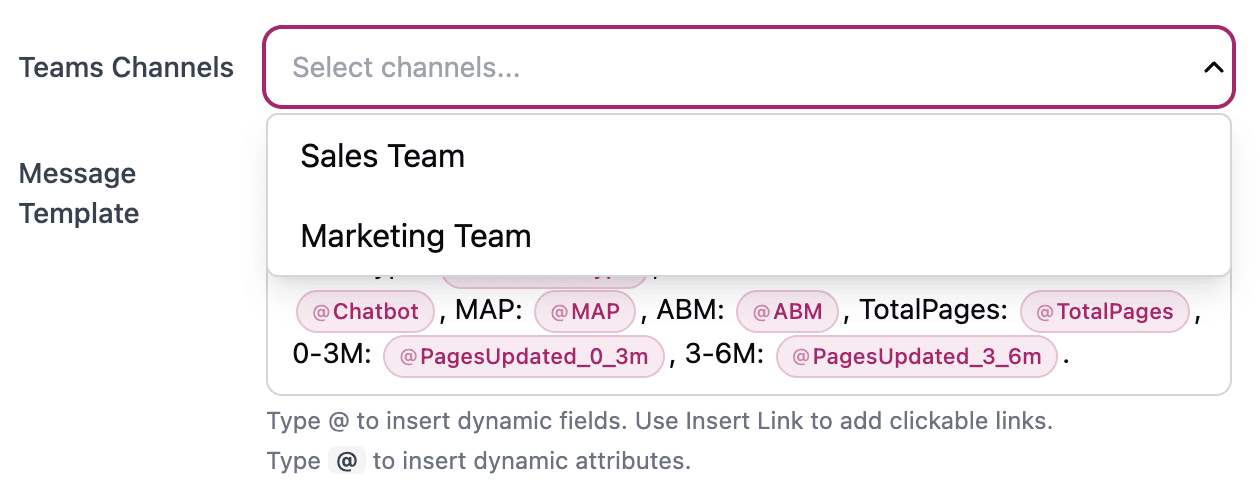
All Teams channels where Vurbalize Alerts is installed are automatically available. Select one or multiple channels — alerts will be delivered to every selected channel when the workflow triggers.
Notes & Permissions
Connect Before Installing
The Microsoft OAuth connection in Vurbalize (Step 1) must be completed before installing the Vurbalize Alerts app in Teams (Step 2). This links your Microsoft tenant to the Vurbalize account first — it is the standard one-time setup all users complete.
Microsoft Marketplace
Vurbalize Alerts is available directly from the Microsoft Teams app marketplace. Search for "Vurbalize Alerts" in the Teams Apps section and install using the same Microsoft account used to connect Vurbalize.
Alert Delivery
In production, alerts are triggered automatically by visitor activity through Vurbalize workflows. Once channels are selected in a workflow, alerts are sent automatically when the workflow triggers.
Frequently Asked Questions
Need Help?
If you run into any issues connecting Microsoft Teams to Vurbalize, our team is ready to help.
Contact SupportWant to see this in action?
Get a prototype built on your website, or book a conversation with our team.